“Mera laptop start nahi ho raha!” What does it mean?

“Mera laptop start nahi ho raha!” What does it mean?
Hardware Troubleshooting

No Power? No POST?
No Display? No Boot?

They all look the same from the outside — a dead screen. But fixing them is a completely different story. Here’s how to tell them apart.

You walk up to a PC and it’s just… not doing anything. Screen’s black. You press the power button — nothing, or something — but the result is the same: you’re staring at darkness.

Here’s the thing: not all dead PCs are dead for the same reason. Whether you’re an IT person, a shop tech, or just someone trying to figure out what’s wrong with their own machine, knowing the exact stage where things failed saves you hours of unnecessary guesswork. Let’s break it down.

Stage 01

No Power

This is the most obvious one. You press the power button and absolutely nothing happens — no fan spin, no beep, no LED glow, nothing. The machine is completely dead to the world.

Symptoms
No fans spin No LEDs at all Power button does nothing Completely silent
Common Causes
Dead PSU Blown fuse / no mains power Loose power cable Faulty power switch Shorted motherboard
First Steps
Check wall socket & cable Test PSU with paperclip test Try a known-good PSU Check PSU fuse
💡 Quick sanity check: Before anything else — is the UPS or stabiliser on? Is the power strip switched on? Is the IEC cable (the kettle plug) fully seated? You’d be surprised how many “dead” PCs come back to life from this.
🔁
Stage 02

No POST

POST stands for Power-On Self Test — it’s the very first thing a motherboard does after power arrives. It checks the CPU, RAM, and essential hardware before handing control to the operating system. A “No POST” machine does get power (fans spin, lights come on) but it never gets past this check. No beeps, no BIOS screen, nothing on the monitor.

Symptoms
Fans spin up Power LED lights up No BIOS/logo screen Beep codes or none at all RGB lights up but no video
Common Causes
Bad / unseated RAM Faulty CPU or missing thermal paste Dead CMOS battery Incompatible hardware Corrupted BIOS Short circuit from extra standoff
First Steps
Reseat RAM (try 1 stick) Clear CMOS Listen for beep codes Boot with bare minimum hardware Check CPU socket for bent pins
💡 Bare minimum boot: Remove everything except CPU, 1 RAM stick, and power. No GPU, no storage, no extra cards. If it POSTs now, add parts back one by one to find the culprit.
🖥️
Stage 03

No Display

This is where it gets sneaky. The PC is actually working fine — it POSTs, it may even boot Windows — but nothing shows up on the monitor. The system is alive; the display path is broken somewhere between the GPU and the screen.

Symptoms
Fans, drives, lights all working HDD LED shows activity Monitor says “No Signal” Windows may fully load (blind)
Common Causes
Wrong display port (HDMI on mobo vs GPU) Bad cable or loose connector Faulty or dead GPU Monitor not set to right input iGPU disabled in BIOS Blown monitor
First Steps
Switch HDMI input on monitor Try a different cable Connect to GPU port (not mobo) Test with a different monitor Reseat GPU
💡 Easy trap: If a dedicated GPU is installed, the motherboard’s HDMI/VGA port is usually disabled. Plugging the monitor into the motherboard gives “No Signal” even when everything else is perfect. Always plug into the GPU first.
💾
Stage 04

No Boot

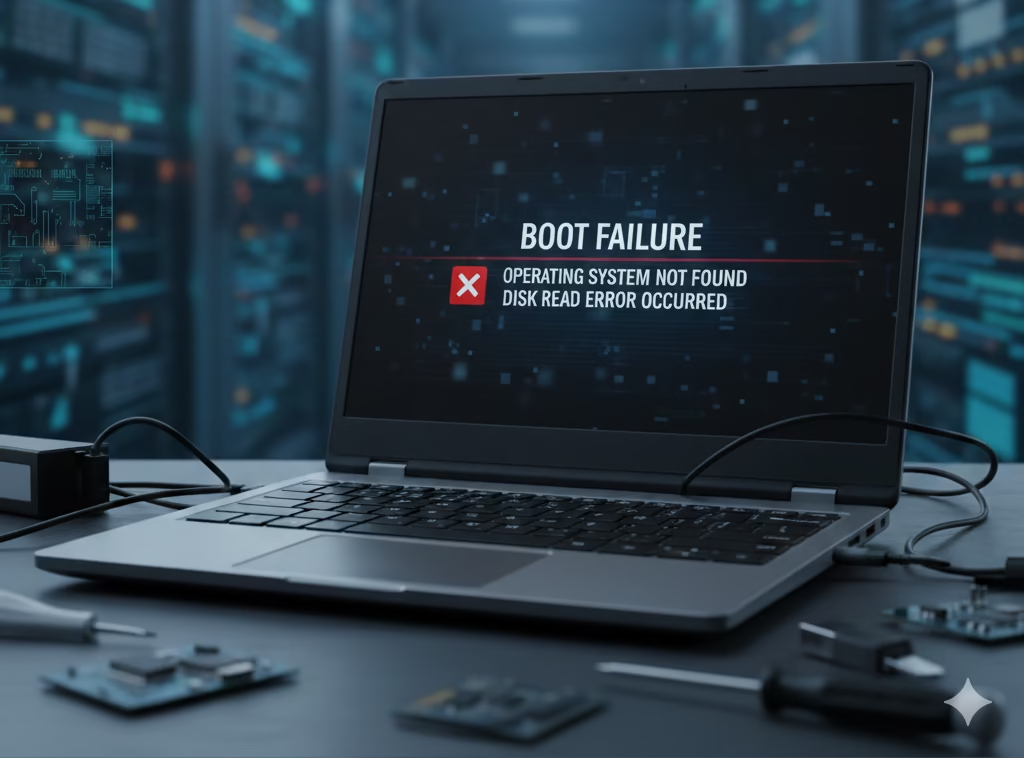
You’ve made it further than all the previous stages. The BIOS runs fine, video is working, but when it tries to load the operating system — it fails. You might get an error message, a spinning circle that never ends, a BSOD, or it just restarts in a loop.

Symptoms
BIOS screen appears fine “Boot device not found” error Windows logo → crash/restart loop BSOD on startup Stuck on loading screen
Common Causes
Failed / dying HDD or SSD Corrupted Windows / boot files Wrong boot order in BIOS Drive not detected in BIOS Bad Windows update MBR / BCD corruption
First Steps
Check BIOS sees the drive Run Startup Repair from bootable USB Check & correct boot order Run CHKDSK on the drive Test drive health with CrystalDiskInfo
💡 Pro move: Open BIOS and check if the SSD/HDD even shows up under Storage/Boot devices. If the BIOS can’t see the drive, Windows has no chance of booting. The problem is then hardware — bad drive, bad SATA cable, or dead port.

Quick Reference: All Four at a Glance

Issue Power? POST? Display? OS Loads? Difficulty
No Power ❌ No ❌ No ❌ No ❌ No Medium
No POST ✅ Yes ❌ No ❌ No ❌ No Hard
No Display ✅ Yes ✅ Yes* ❌ No Maybe Often Easy
No Boot ✅ Yes ✅ Yes ✅ Yes ❌ No Medium
🔍 How to Diagnose — Step by Step
1
Do any fans, LEDs, or anything respond when you press power?
No → You have a No Power issue. Start with PSU & cables. Yes → Go to Step 2

2
Does the BIOS / manufacturer logo screen appear on the monitor?
No → Could be No POST or No Display. Try another monitor/cable first. Yes → Go to Step 3

3
Does the system get past BIOS but fail to load the OS?
Yes → No Boot issue. Check drive health, boot order, and run Startup Repair. No display at all → No Display issue. Check GPU port, cable, and monitor input.

Still Stuck? We’ll Sort It.

Tech-AD’s support team handles everything from dead PSUs to corrupted Windows installs — for businesses across Delhi-NCR. AMC clients get priority turnaround.

Talk to a Tech-AD Engineer →
Web Development and Maintenance with

We build modern, responsive websites that elevate your brand and drive real business results.

Have You Encountered Any IT-Related Issues?

At Tech-AD India Network Solutions, we specialize in troubleshooting IT challenges to minimize disruptions to your business. If you’re facing technical issues issue or need assistance with any IT-related problems, feel free to reach out to us.

If you are in the Delhi-NCR region in India and desire end-to-end IT Support for your Business, we are the experts.

Leave a Reply

Your email address will not be published. Required fields are marked *

IT Solutions Your Business Can Rely On

We deliver comprehensive IT solutions for growing businesses, empowering you to concentrate on what truly matters—driving your success.