
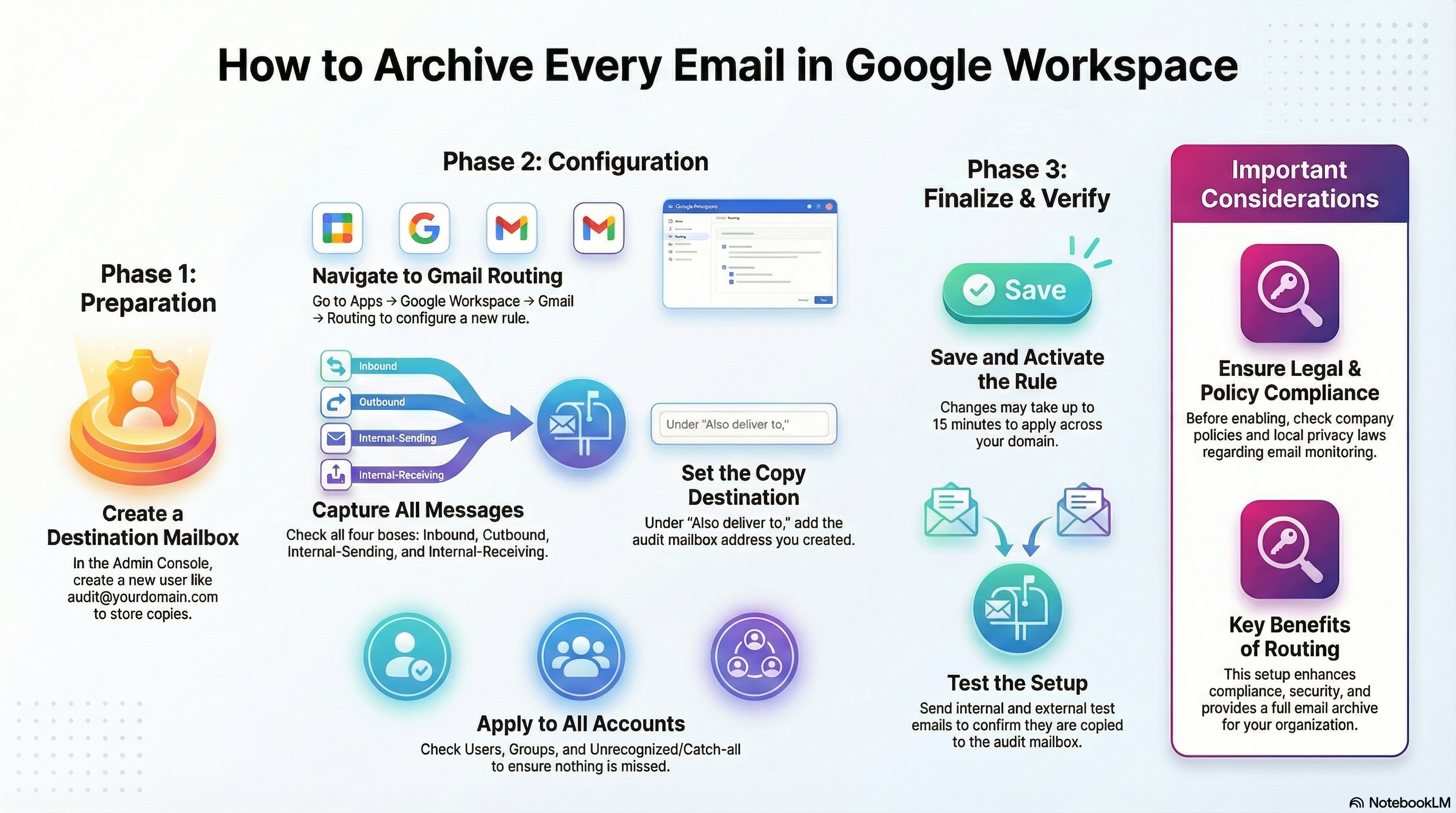
IT administrators and compliance teams managing Google Workspace domains often face the critical challenge of centralised communication monitoring for security or data archival purposes. Google Admin console provides a robust feature called Routing, which offers a definitive solution, allowing organisations to automatically store a duplicate copy of all internal, inbound, and outbound messages. This guide details the steps necessary to establish a centralised email auditing system designed for better compliance, enhanced security, and full email archival.
Prerequisites for Centralised Monitoring
Before beginning the configuration process, the administrator must ensure they have the following resources:
- Google Workspace Admin access.
- A designated Destination email ID where the copied messages will be stored.
- Super Admin rights are highly recommended for a comprehensive setup.
Phase I: Creating the Audit Destination
The initial step involves creating a dedicated user account solely designed to receive these duplicated messages.
- Navigate to admin.google.com.
- Select Directory → Users.
- Click Add New User.
- Create a functional ID that clearly indicates its purpose, such as
audit@yourdomain.comorcompliance@yourdomain.com. - Set a highly secure password for this new account.
- Save the profile. This mailbox will serve as the repository for all copied messages.
Phase II: Defining the Routing Mechanism
The core configuration takes place within the Gmail settings, where the comprehensive routing rule is established.
Step 1: Accessing Gmail Routing Settings
- In the Admin Console, navigate to: Apps → Google Workspace → Gmail → Routing.
- Scroll down to the Routing section.
- Click Configure.
Step 2: Creating the Routing Rule
A. Set Routing Name: Enter a clear, descriptive name such as “All Mail Copy Rule” or “Copy All Emails” to help identify the rule later.
B. Email Messages to Affect: To ensure complete capture of traffic, check all four available boxes:
- Inbound
- Outbound
- Internal – Sending
- Internal – Receiving
This guarantees that every message transmitted across the domain is captured.
C. Set the Copy Destination: Under the action, Also deliver to → Add more recipients:
- Click Add.
- Enter the dedicated email address created earlier (e.g.,
audit@yourdomain.com). - Select Recipient.
- Save.
This step ensures that a duplicate email is delivered specifically to the audit mailbox.
D. Account Types to Affect For maximum coverage, check all relevant account types:
- Users
- Groups
- Unrecognised / Catch-all
Selecting the “Unrecognised / Catch-all” option ensures that mail from all sources, including messages sent to non-existent addresses, is successfully copied.
E. Leave Other Settings Default: It is generally unnecessary to modify advanced parameters such as Envelope filter, Headers, Spam settings, TLS, or Options. These should be kept at default settings unless a specialised requirement exists.
Phase III: Deployment and Verification
Once the rule is fully defined, it must be deployed and tested.
- Click Add Setting and then Save Changes.
- Be advised that changes may take 10–15 minutes to apply across the entire domain.
To confirm functionality, a three-part test is essential:
- Send an email from any internal user to an external ID.
- Send an email from an external source to any internal user.
- Send an internal email between two users.
Verify that all three test messages appear successfully in the audit@yourdomain.com mailbox.
Critical Compliance Note
Before activating widespread email monitoring, organisations must take steps to ensure they are compliant. This includes ensuring that your organisation’s policies explicitly allow email monitoring, adhering strictly to local privacy laws, and informing employees if required by regional regulations.
By implementing this comprehensive routing strategy, your organisation gains the capacity to maintain better compliance, enhance security, achieve full email archival, and support easy backup and monitoring. The routing feature acts like a digital carbon copy system, ensuring every piece of mail created or received within your domain generates an exact duplicate copy for permanent, centralised record-keeping.


Leave a Reply